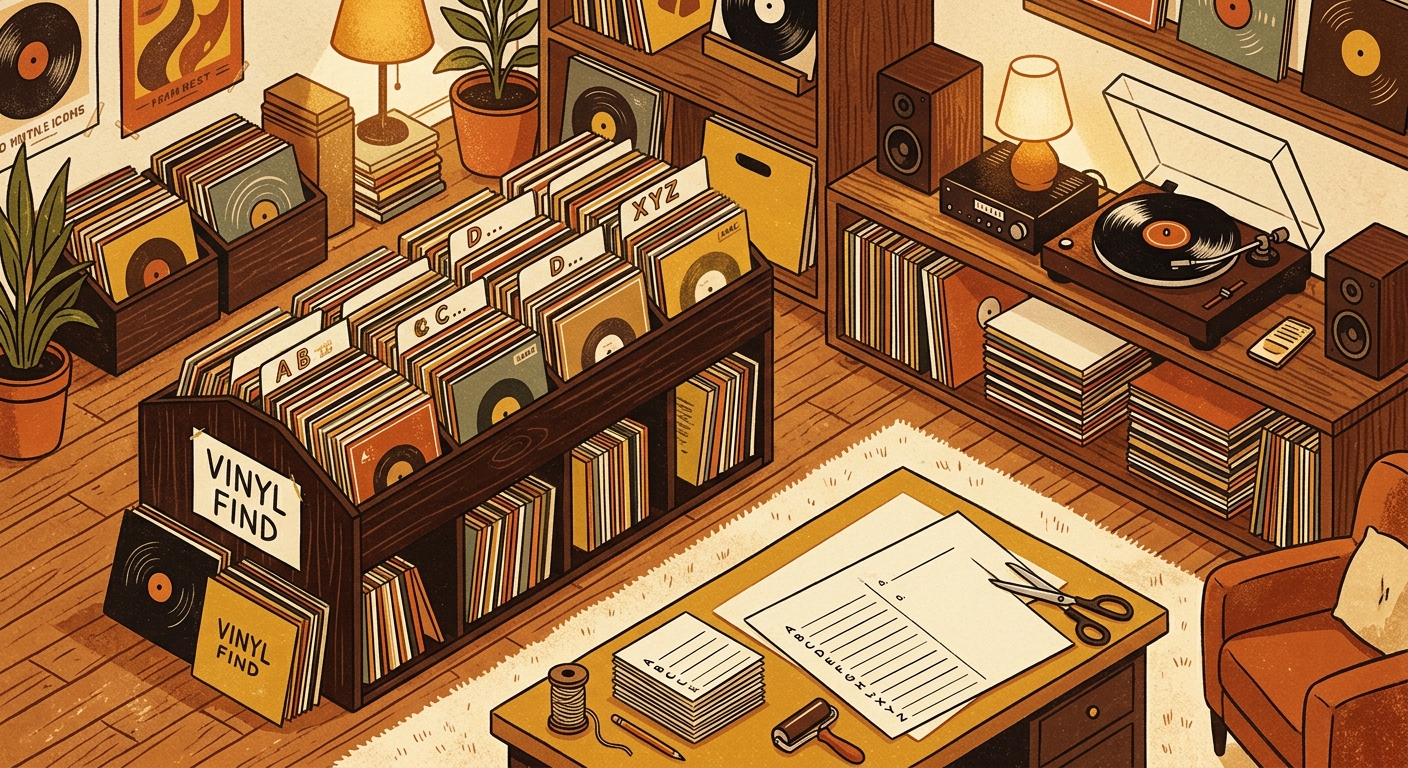
Free Vinyl Collection Spreadsheet Template Download Guide
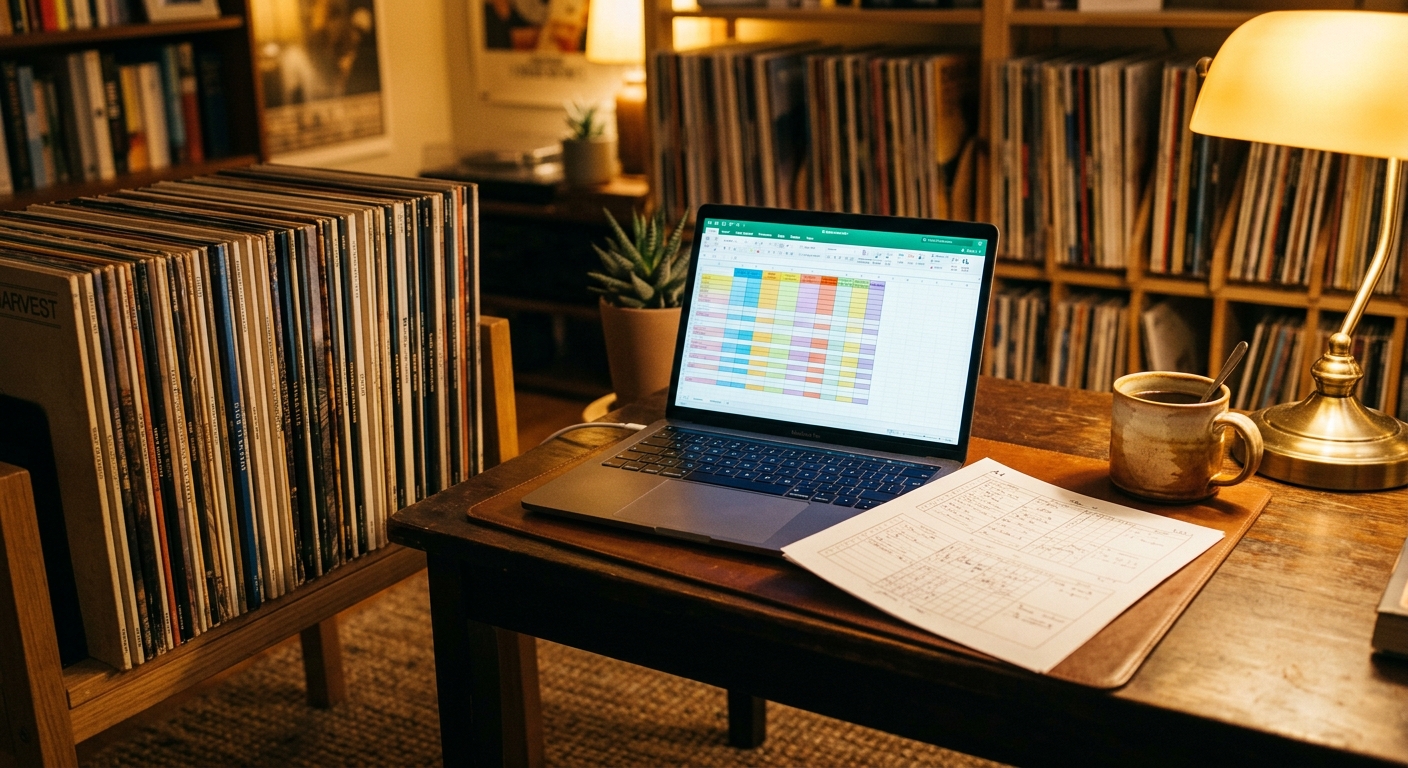
A free vinyl collection spreadsheet template is the simplest way to know what is on your shelf, what is on your wishlist, and what you actually paid for each pressing. This guide covers the actual download: where to get a working template, how to open it in your preferred spreadsheet app, and how to wire it up so it stays useful after the first hundred records. If you are still choosing between a spreadsheet, a printable PDF, or a dedicated app, start with the printable PDF tracker and graduate to the spreadsheet when sorting and filtering start to matter.
Pick the right template source
There are four reliable ways to get a working spreadsheet in front of you. Pick the one that matches how you currently track your collection.
- Start from scratch in Google Sheets or Excel. Fastest path. Create a new sheet, add the column headers in row 1, freeze that row, and start typing. No download required.
- Download a pre-built free template. The Ardent Workshop free starter is a one-tab template with artist, title, format, year, and a have/want flag, plus three running counts at the top. It opens natively in Excel, Google Sheets, and LibreOffice Calc, with no macros and no signup.
- Export your collection from Discogs. If you already use Discogs to track records, the built-in export under Settings > Export Collection gives you a clean CSV with the standard fields. Open the file in Excel, Google Sheets, Numbers, LibreOffice Calc, or Airtable.
- Connect Discogs to a Google Sheet. The community-built t8ortot/sheets-discogs-tracker is a Google Apps Script that pulls your Discogs collection into Sheets automatically, fetches the lowest listed price for each release, and color-codes profit and loss. It is the closest thing to a spreadsheet that updates itself.
The columns that actually matter
Most templates overstuff the columns on day one and underdeliver on day ninety. The fields below are the ones collectors actually use six months in.
| Column | What to write | Why it matters |
|---|---|---|
| Artist | Primary artist or band | Alphabetizing and lookups |
| Album | Full title as printed on the spine | Separates studio albums, live records, and compilations |
| Year | Original release year | Distinguishes a 1977 original from a 2022 reissue |
| Label and catalog number | Example: Columbia JC 35318 | The fastest way to identify a specific pressing |
| Format | LP, 2xLP, 45, 7-inch, 10-inch, box set | Shelf planning and playback speed |
| Color or variant | Black, clear, splatter, numbered | Insurance and resale notes |
| Media condition | NM, VG+, VG, G, or your own scale | How the record plays, not just how it looks |
| Sleeve condition | Jacket and inner sleeve grade | Collector value lives mostly in the sleeve |
| Purchase price | What you actually paid | Spending tracking and insurance |
| Storage location | Shelf, cube, crate, box number | Critical once records spill into more than one place |
| Last played | Date or month | Shows what is loved versus merely owned |
| Notes | Surface noise, signed insert, warped edge | The detail you will forget later |
If the list feels long, start with five: artist, album, catalog number, condition, and last played. Add the rest as you find yourself wishing you had them.
How to download and open the template in your preferred app
- Download the CSV or XLSX file to your Downloads folder. CSV is the most portable format and opens anywhere.
- Open in Google Sheets. Go to sheets.google.com, click the folder icon, select Upload, and drag the file in. Google Sheets preserves the column structure and lets you start editing immediately.
- Open in Excel. Double-click the file. If it is CSV, Excel may open it directly. For XLSX, double-click after Excel is installed. Run the Text Import Wizard if Excel asks about delimiters.
- Open in Apple Numbers or LibreOffice Calc. Both apps read CSV and XLSX directly. Numbers is the friendliest on macOS for one-time imports; LibreOffice is the most faithful to Excel formulas.
- Open in Airtable. Airtable reads CSV through the CSV Import app. Airtable is the right choice if you want a richer view, a kanban board for to-clean or to-sell records, and per-record attachments.
If you are importing from Discogs
The built-in Discogs export under Settings > Export Collection gives you a clean CSV with the standard fields. For more granular control, the dgiglio84/discogs-collection-export script on GitHub sorts the export by artist and then by release year, while the victorloux/discogs-get-collection script adds full release metadata so you can sort by genre, style, or country without leaving the spreadsheet.
To run either script, you need a Discogs personal access token from your developer settings page, plus the Python discogs_client library. Both repos include step-by-step instructions in their READMEs and run in under a minute for collections under a few thousand records.
Once you have the CSV, drop it into a new sheet and confirm the headers match the column list above. Rename any Discogs-specific headers (for example, Catno becomes Label and catalog number) so the template stays consistent across records.
Live sync with Google Sheets (optional but worth it)
The t8ortot/sheets-discogs-tracker Apps Script connects your Discogs username to a Google Sheet and refreshes each row daily. It fetches the lowest listed price for every release, calculates total cost versus current value, and color-codes profit and loss against a threshold you set. It also highlights rows missing a Discogs ID so you can chase down the gaps during a quiet afternoon.
Setup takes about ten minutes: create a new Google Sheet, open Extensions > Apps Script, paste the script from the GitHub repo, save, and run. The script builds the column structure, then asks for your Discogs username. Set your Discogs collection to public in your privacy settings, otherwise the script cannot read it.
Quick setup plan for the weekend
- Download the template or pick your preferred empty-sheet starting point.
- Add the column headers from the table above, freeze row 1.
- Pick one shelf, one crate, or about 50 records. Do not try to do the whole room in one session.
- Fill in artist, album, year, format, and condition. Skip the rest until you need them.
- Sort by artist. Note any duplicates you forgot you owned.
- Add a Notes column only if you find yourself typing the same thing repeatedly.
- If you want the spreadsheet to update itself, install the Discogs sync script and set the threshold.
FAQ
What columns should a vinyl collection spreadsheet include?
Start with artist, album, year, format, label, catalog number, country, pressing notes, media condition, sleeve condition, purchase price, storage location, last cleaned, last played, and notes. Add a Discogs URL column if you use Discogs for pressing matching.
Is Google Sheets or Excel better for a vinyl catalog?
Google Sheets wins for sharing, mobile access, and live sync with Discogs. Excel wins for complex formulas, larger collections, and offline work. Both apps open CSV and XLSX natively, so you can switch later without retyping.
Can I import my Discogs collection into a spreadsheet?
Yes. Discogs exports a CSV under Settings > Export Collection. For more metadata, the dgiglio84 and victorloux GitHub scripts fetch the full release details and sort by any field you want.
What is the free Google Sheets Discogs tracker?
The t8ortot/sheets-discogs-tracker Apps Script connects your Discogs username to a Google Sheet and refreshes each row daily with the lowest listed price and a profit/loss color code.
Do I need a paid template?
Not at first. A free one-tab starter with five columns is enough for the first 200 records. Paid multi-tab templates become worth it when you want separate tabs for wantlist, play log, grading guide, and gear.
A spreadsheet tracks what you own. What's Spinning identifies what's playing.
On-device vinyl ID logs your listening history automatically. 7-day free trial.
Looking for Shazam for vinyl?
What's Spinning identifies what's playing on your turntable on-device, logs history, and AirPlays now-playing to your TV.
Comparing vinyl ID apps?
Analog requires Discogs and is iPhone-first (iPad coming). What's Spinning works without Discogs on iPhone and iPad with AirPlay.
Try What's Spinning Free
Turn your iPad into a live now-playing display. Track every record you spin.
START FREE TRIALThen $4.99/mo or $39.99/yr · Cancel anytime